Troubleshooting Overview
Page Item: Troubleshooting SLUG: troubleshooting
CONTENT CAN BE FED BY INPUT FROM THE COMMUNITY FORUM AND/OR REFERENCE TO THE COMMUNITY
PLACE ECLIPSE CONTENT HERE TO ENTERED INTO THE KONTENT.AI-SPECIFIC ASSET
-
Open the Eclipse Console view
-
Open the SonarLint Console
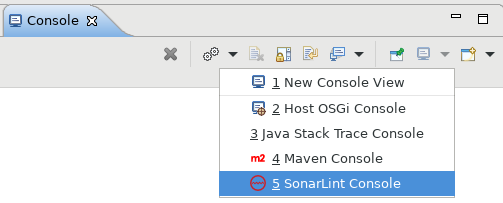
-
Enable Verbose output and Analysis logs

-
Reproduce the issue (for example, reopen the offending file)
Sometimes errors are not in the SonarLint console but could be directly in Eclipse error logs. To find these errors:
-
Open your Eclipse Error Log view.
-
Look for an error event related to SonarLint.
-
Open event details to get the stacktrace.

No. Scanner properties you may have defined in the sonar-project.properties or pom.xml files (for example sonar.sources or sonar.projectBasedir) only make sense when modifying the SonarScanner in the command line. SonarLint tries to use IDE metadata to avoid other configurations.
If you want to share some configuration between SonarScanners and SonarLint, like exclusions, or some analyzer properties, the best way is to use Connected Mode and set the configuration in the SonarQube or SonarCloud UI
PLACE INTELLIJ CONTENT HERE TO ENTERED INTO THE KONTENT.AI-SPECIFIC ASSET
-
Open the SonarLint tool window: View > Tool Windows > SonarLint.
-
Enable the Verbose output and Analysis logs options in the tool window settings.

-
Find the logs in the Log tab of the tool window.
In some cases, it can be useful to extract thread dumps from the running instance of IntelliJ for debugging; thread dumps often help us investigate UI freeze issues or threading problems. This article from JetBrains will help you find or generate those dumps.
If the UI is still reactive, you have another alternative: select Help > Collect Logs and Diagnostic Data to create a .zip file containing one or several threadDumps-XXX folders. In these folders, you should find one .txt file with the current date and time that will contain the logs.
No. Scanner properties you may have defined in the sonar-project.properties or pom.xml files (for example sonar.sources or sonar.projectBasedir) only make sense when modifying the SonarScanner in the command line. SonarLint tries to use IDE metadata to avoid other configurations.
If you want to share some configuration between SonarScanners and SonarLint, like exclusions, or some analyzer properties, the best way is to use Connected Mode and set the configuration in the SonarQube or SonarCloud UI
PLACE VISUAL STUDIO CONTENT HERE TO ENTERED INTO THE KONTENT.AI-SPECIFIC ASSET
Starting with version 4.21, it is possible to create a "reproducer" file for C/C++ analysis. A reproducer file contains diagnostic information to help the developers at SonarSource investigate problems that occur during C/C++ analysis.
Note: Starting with version 4.27, a second "reproducer" file is created with additional debug information.
If you encounter a problem with C/C++ analysis, please contact us in the community forum and include the reproducer file(s).
To create a reproducer:
- open the C/C++ file that is not being analysed correctly
- open Visual Studio's Command Window, found under
View->Other Windows->Command Window. - type in the command window "Analyze.SonarLint.CFamily.CreateReproducer":

You can then view the location of the created reproducer file(s) in the SonarLint Output pane:
Reproducer file in SonarLint 4.21-4.26

Reproducer files in SonarLint 4.27

Notes:
- the reproducer file(s) are regenerated each time the command is invoked. Invoking the command will overwrite the previous reproducer file(s).
- running the reproducer will only produce the reproducer file(s). It will not report any issues for the active C/C++ file.
PLACE VISUAL STUDIO CONTENT HERE TO ENTERED INTO THE KONTENT.AI-SPECIFIC ASSET
-
Open the SonarLint extension settings: Manage > Settings > Extensions > SonarLint
-
Enable the Show Verbose Logs and select the Show Analyzer Logs options in the extension settings.

-
Switch the output in the VSCode console: Output > SonarLint
