A Python plugin for Domoticz that creates several devices for the HomeWizard Wifi 1F kWh meter.
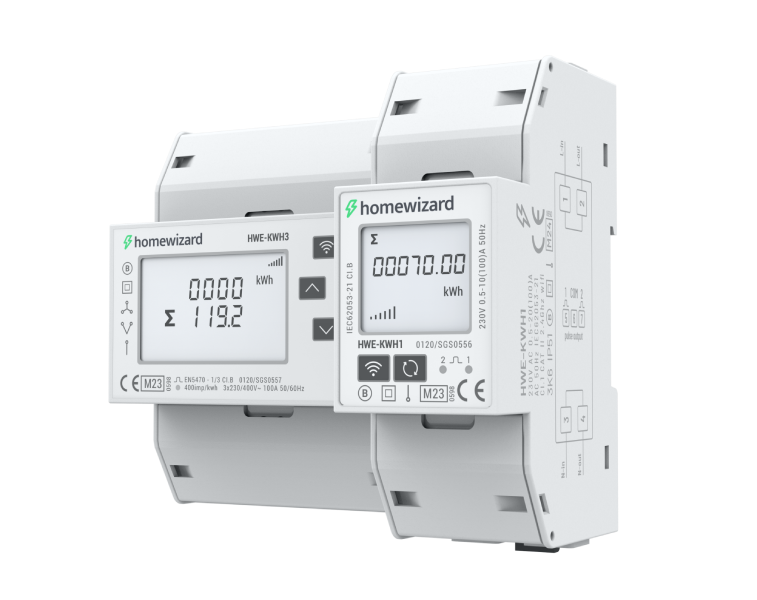
The HomeWizard Wi-Fi kWh meters are devices that can be installed in a modern power distribution system in your home. By default it sends all of its data to the HomeWizard servers but thanks to its local API you can read the device locally too. With this plugin you can use Domoticz to read the meter and store the data without using your internet connection.
Domoticz uses Python to run plugins. Use the installation instructions on the Domoticz wiki page to install Python. When Python is installed use these instructions to install this plugin.
To access the data from the Wifi 1 Phase kWh meter, you have to enable the API. You can do this in the HomeWizard Energy app (version 1.5.0 or higher). Go to Settings > Meters > Your meter, and turn on Local API.
The plugin is able to create several devices depending on the values that are read from your meter and that you enable when creating the hardware device. By default only the devices listed under Intial devices are created, even some of these may not be usefull for everyone, but you can safely ignore those. Setting Mode 5 to 1, initially it is 0, enables all possible devices. Initial devices are, in the order the author thinks are most important:
- An energy meter that reads the historical counters with measured energy drawn and fed back (kWh) from/to the grid. This is the differebetween the imported energy and the exported energy. This device also showes the average power (Watt).
- An energy meter that shows the actual power (Watt) and the calculated used/produced energy (kWh) in case calculation is enabled.
- A meter that shows the actual amperage through the meter (A)
- A voltage meter that shows the current voltage (V)
- A Wi-Fi signal strength meter that shows the current signal strength of the Wi-Fi 1F kWh meter (%)
Additional devices, enabled when Mode5 is 1:
- A meter that shows the apparent current in the meter (A)
- A meter that shows the reactive current in the meter (A)
- An energy meter that shows the apparent power in the meter (VA)
- An energy meter that shows the reactive power in the meter (VA)
- A meter that shows the power factor of the phase (%)
Actual power is the power that is really consumed or produced and that is payed for. Apparent power is the power that passes between the source and the target. Reactive power is the power that is exchanged between the source and the target during a cycle; it is exchanged, so you have to dimension your circuit to cope with its current (i.e. the size of the fuse in your circuit), but it is not charged. Actual power is the difference between apparent power and reactive power. The power factor is the percentage of actual power compared to apparent power.
The configuration is pretty self explaining. You just need the IP address of your Wi-Fi 1F kWh meter or the name in your local network. Make sure the IP address is static DHCP so it won't change over time.
| Configuration | Explanation |
|---|---|
| IP address | The IP address of the Wi-Fi 3F kWh meter |
| Port | The port on which to connect (80 is default) |
| Data interval | The interval for the data devices to be refreshed |
| Mode3 | An offset to the counter read from the device |
| Mode4 | Currently not implemented |
| Mode5 | 0 when only initial devices need to be generated |
| 1 when also these additional devices are wanted | |
| Debug | Used by the developer to test stuff |
The offset to the counter in Wh is added to the counter, current value of the used (positive) / produced (negative) total Wh registered in the device. That reading is the subtraction of imported and exported Wh. The offset can be used in case there are already historical data, which can be added in the table meter_calendar of this device. The value to be entered is the value of the counter of the device when it stopped collecting. So in this case this device does not start at counter zero, but at the entered value.
Initially the design did not take into account that the plugin could be used for more than one hardware device. Version 1.0.1 supports multiple hardware devices with proper distinction of Mode3 and Mode6 for each hardware device.
The desing of this plugin is based on the Python set elements. Each element is a list of values. In case you want less devices than the standard implemeted in this plugin, it is quite simple to change the set by commenting out the specific element in the set. Nothing else needs to change. The plugin uses the names of the elements to get the values from the readed data from the device.
If you disable this way devices or you change the Mode5 parameter from 1 to 0, and these devices are already present, you need to manually remove these devices in the webpage with the Devices.