


Extensions for Microsoft.Agents.AI and Microsoft.Extensions.AI.
To ensure the long-term sustainability of this project, users of this package who generate revenue must pay an Open Source Maintenance Fee. While the source code is freely available under the terms of the License, this package and other aspects of the project require adherence to the Maintenance Fee.
To pay the Maintenance Fee, become a Sponsor at the proper OSMF tier. A single fee covers all of Devlooped packages.


Extensions for Microsoft.Agents.AI, such as configuration-driven auto-reloading agents.
Microsoft.Agents.AI (aka Agent Framework is a comprehensive API for building AI agents. Its programatic model (which follows closely the Microsoft.Extensions.AI approach) provides maximum flexibility with little prescriptive structure.
This package provides additional extensions to make developing agents easier and more declarative.
Tweaking agent options such as description, instructions, chat client to use and its options, etc. is very common during development/testing. This package provides the ability to drive those settings from configuration (with auto-reload support). This makes it far easier to experiment with various combinations of agent instructions, chat client providers and options, and model parameters without changing code, recompiling or even restarting the application:
Note
This example shows integration with configurable chat clients feature from the
Devlooped.Extensions.AI package, but any IChatClient registered in the DI container
with a matching key can be used.
{
  "AI": {
    "Agents": {
      "MyAgent": {
        "Description": "An AI agent that helps with customer support.",
        "Instructions": "You are a helpful assistant for customer support.",
        "Client": "Grok",
        "Options": {
          "ModelId": "grok-4",
          "Temperature": 0.5,
        }
      }
    },
    "Clients": {
      "Grok": {
        "Endpoint": "https://api.grok.ai/v1",
        "ModelId": "grok-4-fast-non-reasoning",
        "ApiKey": "xai-asdf"
      }
    }
  }
}
var host = new HostApplicationBuilder(args);
host.Configuration.AddJsonFile("appsettings.json, optional: false, reloadOnChange: true);
// 👇 implicitly calls AddChatClients
host.AddAIAgents();
var app = host.Build();
var agent = app.Services.GetRequiredKeyedService<AIAgent>("MyAgent");Agents are also properly registered in the corresponding Microsoft Agent Framework AgentCatalog:
var catalog = app.Services.GetRequiredService<AgentCatalog>();
await foreach (AIAgent agent in catalog.GetAgentsAsync())
{
    var metadata = agent.GetService<AIAgentMetadata>();
    Console.WriteLine($"Agent: {agent.Name} by {metadata.ProviderName}");
}
You can of course use any config format supported by .NET configuration, such as TOML which is arguably more human-friendly for hand-editing:
[ai.clients.openai]
modelid = "gpt-4.1"

[ai.clients.grok]
endpoint = "https://api.x.ai/v1"
modelid = "grok-4-fast-non-reasoning"

[ai.agents.orders]
description = "Manage orders using catalogs for food or any other item."
instructions = """
        You are an AI agent responsible for processing orders for food or other items.
        Your primary goals are to identify user intent, extract or request provider information, manage order data using tools and friendly responses to guide users through the ordering process.
    """

# ai.clients.openai, can omit the ai.clients prefix
client = "openai"

[ai.agents.orders.options]
modelid = "gpt-4o-mini"
This can be used by leveraging Tomlyn.Extensions.Configuration.
Note
This package will automatically dedent and trim start and end newlines from multi-line instructions and descriptions when applying the configuration, avoiding unnecessary tokens being used for indentation while allowing flexible formatting in the config file.
You can also leverage the format pioneered by VS Code Chat Modes, (por "custom agents") by using markdown format plus YAML front-matter for better readability:
---
id: ai.agents.notes
description: Provides free-form memory
client: grok
model: grok-4-fast
---
You organize and keep notes for the user.
# Some header
More content
Visual Studio Code will ignore the additional attributes used by this project. In particular, the model
property is a shorthand for setting the options.modelid, but in our implementation, the latter takes
precedence over the former, which allows you to rely on model to drive the VSCode testing, and the
longer form for run-time with the Agents Framework:
---
id: ai.agents.notes
description: Provides free-form memory
model: Grok Code Fast 1 (copilot)
client: grok
options:
  modelid: grok-code-fast-1
---
// Instructions
Use the provided AddAgentMarkdown extension method to load instructions from files as follows:
var host = new HostApplicationBuilder(args);
host.Configuration.AddAgentMarkdown("notes.agent.md", optional: false, reloadOnChange: true);
The id field in the front-matter is required and specifies the configuration section name, and
all other fields are added as if they were specified under it in the configuration.
The Microsoft agent framework allows extending
agents with dynamic context via AIContextProvider
and AIContext. This package supports dynamic extension of a configured agent in the following ways (in order of priority):
- A keyed service
AIContextProviderFactorywith the same name as the agent will be set up just as if you had set it manually as the ChatClientAgentOptions.AIContextProviderFactory in code. - Aggregate of AI contexts from:
a. Keyed service
AIContextProviderwith the same name as the agent. b. Keyed serviceAIContextwith the same name as the agent. c. Other services pulled in viausesetting for an agent registered as eitherAIContextProviderorAIContextwith a matching key.
The first option assumes you want full control of the context, so it does not allow futher composition. The second alternative allows more declarative scenarios involving reusable and cross-cutting context definitions.
For example, let's say you want to provide consistent tone for all your agents. It would be tedious, repetitive and harder
to maintain if you had to set that in each agent's instructions. Instead, you can define a reusable context named tone such as:
[ai.context.tone]
instructions = """\
    Default to using spanish language, using argentinean "voseo" in your responses \
    (unless the user explicitly talks in a different language). \
    This means using "vos" instead of "tú" and conjugating verbs accordingly. \
    Don't use the expression "pa'" instead of "para". Don't mention the word "voseo".
    """
Then, you can reference that context in any agent using the use setting:
[ai.agents.support]
description = "An AI agent that helps with customer support."
instructions = "..."
client = "grok"
use = ["tone"]

[ai.agents.sales]
description = "An AI agent that helps with sales inquiries."
instructions = "..."
client = "openai"
use = ["tone"]
Configured contexts can provide all three components of an AIContext: instructions, messages and tools, such as:
[ai.context.timezone]
instructions = "Always assume the user's timezone is America/Argentina/Buenos_Aires unless specified otherwise."
messages = [
    { system = "You are aware of the current date and time in America/Argentina/Buenos_Aires." }
]
tools = ["get_date"]
If multiple contexts are specified in use, they are applied in order, concatenating their instructions, messages and tools.
In addition to configured sections, the use property can also reference exported contexts as either AIContext
(for static context) or AIContextProvider (for dynamic context) registered in DI with a matching name.
The tools section allows specifying tool names registered in the DI container, such as:
services.AddKeyedSingleton("get_date", AIFunctionFactory.Create(() => DateTimeOffset.Now, "get_date"));This tool will be automatically wired into any agent that uses the timezone context above.
Agents themselves can also add tools from DI into an agent's context without having to define an entire
section just for that, by specifying the tool name directly in the tools array:
[ai.agents.support]
description = "An AI agent that helps with customer support."
instructions = "..."
client = "grok"
use = ["tone"]
tools = ["get_date"]
This enables a flexible and convenient mix of static and dynamic context for agents, all driven from configuration.
In addition to registering your own tools in DI, you can also use leverage the MCP C# SDK and reuse the same tool declarations:
builder.Services.AddMcpServer().WithTools<NotesTools>();

// 👇 Reuse same tool definitions in agents
builder.AddAIAgents().WithTools<NotesTools>();

Extensions for Microsoft.Extensions.AI
Since tweaking chat options such as model identifier, reasoning effort, verbosity and other model settings is very common, this package provides the ability to drive those settings from configuration (with auto-reload support), both per-client as well as per-request. This makes local development and testing much easier and boosts the dev loop:
{
  "AI": {
    "Clients": {
      "Grok": {
        "Endpoint": "https://api.grok.ai/v1",
        "ModelId": "grok-4-fast-non-reasoning",
        "ApiKey": "xai-asdf"
      }
    }
  }
}
var host = new HostApplicationBuilder(args);
host.Configuration.AddJsonFile("appsettings.json, optional: false, reloadOnChange: true);
host.AddChatClients();
var app = host.Build();
var grok = app.Services.GetRequiredKeyedService<IChatClient>("Grok");Changing the appsettings.json file will automatically update the client
configuration without restarting the application.
The support for OpenAI chat clients provided in Microsoft.Extensions.AI.OpenAI fall short in some scenarios:
- Specifying per-chat model identifier: the OpenAI client options only allow setting
a single model identifier for all requests, at the time the
OpenAIClient.GetChatClientis invoked. - Setting reasoning effort: the Microsoft.Extensions.AI API does not expose a way to set reasoning
effort for reasoning-capable models, which is very useful for some models like
o4-mini.
So solve both issues, this package provides an OpenAIChatClient that wraps the underlying
OpenAIClient and allows setting the model identifier and reasoning effort per request, just
like the above Grok examples showed:
var messages = new Chat()
{
    { "system", "You are a highly intelligent AI assistant." },
    { "user", "What is 101*3?" },
};

IChatClient chat = new OpenAIChatClient(Environment.GetEnvironmentVariable("OPENAI_API_KEY")!, "gpt-5");

var options = new ChatOptions
{
    ModelId = "gpt-5-mini",                 // 👈 can override the model on the client
    ReasoningEffort = ReasoningEffort.High, // 👈 or Medium/Low/Minimal, extension property
};

var response = await chat.GetResponseAsync(messages, options);
Tip
We provide support for the newest Minimal reasoning effort in the just-released
GPT-5 model family.
Similar to the Grok client, we provide the WebSearchTool to enable search customization
in OpenAI too:
var options = new ChatOptions
{
    //                          👇 search in Argentina, Bariloche region
    Tools = [new WebSearchTool("AR")
    {
        Region = "Bariloche",                        // 👈 Bariloche region
        TimeZone = "America/Argentina/Buenos_Aires", // 👈 IANA timezone
        ContextSize = WebSearchToolContextSize.High      // 👈 high search context size
    }]
};
Note
This enables all features supported by the Web search feature in OpenAI.
If advanced search settings are not needed, you can use the built-in M.E.AI HostedWebSearchTool
instead, which is a more generic tool and provides the basics out of the box.
The underlying HTTP pipeline provided by the Azure SDK allows setting up policies that can observe requests and responses. This is useful for monitoring the requests and responses sent to the AI service, regardless of the chat pipeline configuration used.
This is added to the OpenAIClientOptions (or more properly, any
ClientPipelineOptions-derived options) using the Observe method:
var openai = new OpenAIClient(
    Environment.GetEnvironmentVariable("OPENAI_API_KEY")!,
    new OpenAIClientOptions().Observe(
        onRequest: request => Console.WriteLine($"Request: {request}"),
        onResponse: response => Console.WriteLine($"Response: {response}"),
    ));
You can for example trivially collect both requests and responses for payload analysis in tests as follows:
var requests = new List<JsonNode>();
var responses = new List<JsonNode>();
var openai = new OpenAIClient(
    Environment.GetEnvironmentVariable("OPENAI_API_KEY")!,
    new OpenAIClientOptions().Observe(requests.Add, responses.Add));
We also provide a shorthand factory method that creates the options and observes is in a single call:
var requests = new List<JsonNode>();
var responses = new List<JsonNode>();
var openai = new OpenAIClient(
    Environment.GetEnvironmentVariable("OPENAI_API_KEY")!,
OpenAIClientOptions.Observable(requests.Add, responses.Add));Given the following tool:
MyResult RunTool(string name, string description, string content) { ... }You can use the ToolFactory and FindCall<MyResult> extension method to
locate the function invocation, its outcome and the typed result for inspection:
AIFunction tool = ToolFactory.Create(RunTool);
var options = new ChatOptions
{
    ToolMode = ChatToolMode.RequireSpecific(tool.Name), // 👈 forces the tool to be used
    Tools = [tool]
};

var response = await client.GetResponseAsync(chat, options);
// 👇 finds the expected result of the tool call
var result = response.FindCalls<MyResult>(tool).FirstOrDefault();

if (result != null)
{
    // Successful tool call
    Console.WriteLine($"Args: '{result.Call.Arguments.Count}'");
    MyResult typed = result.Result;
}
else
{
    Console.WriteLine("Tool call not found in response.");
}
If the typed result is not found, you can also inspect the raw outcomes by finding
untyped calls to the tool and checking their Outcome.Exception property:
var result = response.FindCalls(tool).FirstOrDefault();
if (result.Outcome.Exception is not null)
{
    Console.WriteLine($"Tool call failed: {result.Outcome.Exception.Message}");
}
else
{
    Console.WriteLine($"Tool call succeeded: {result.Outcome.Result}");
}
Important
The ToolFactory will also automatically sanitize the tool name
when using local functions to avoid invalid characters and honor
its original name.
Additional UseJsonConsoleLogging extension for rich JSON-formatted console logging of AI requests
are provided at two levels:
- Chat pipeline: similar to
UseLogging. - HTTP pipeline: lowest possible layer before the request is sent to the AI service,
can capture all requests and responses. Can also be used with other Azure SDK-based
clients that leverage
ClientPipelineOptions.
Note
Rich JSON formatting is provided by Spectre.Console
The HTTP pipeline logging can be enabled by calling UseJsonConsoleLogging on the
client options passed to the client constructor:
var openai = new OpenAIClient(
    Environment.GetEnvironmentVariable("OPENAI_API_KEY")!,
    new OpenAIClientOptions().UseJsonConsoleLogging());
For a Grok client with search-enabled, a request would look like the following:
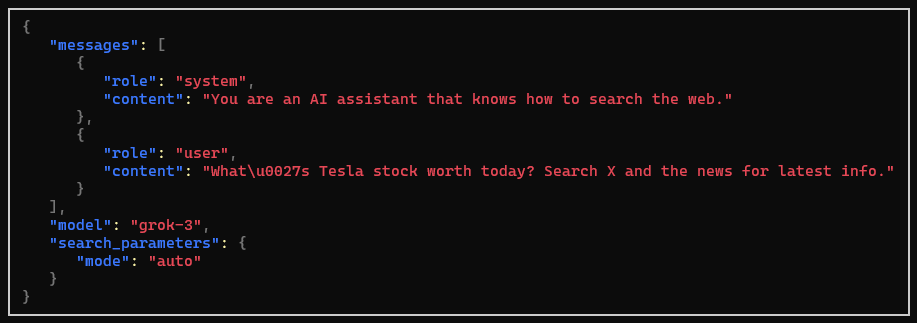
Both alternatives receive an optional JsonConsoleOptions instance to configure
the output, including truncating or wrapping long messages, setting panel style,
and more.
The chat pipeline logging is added similar to other pipeline extensions:
IChatClient client = new GrokChatClient(Environment.GetEnvironmentVariable("XAI_API_KEY")!, "grok-3-mini")
    .AsBuilder()
    .UseOpenTelemetry()
    // other extensions...
    .UseJsonConsoleLogging(new JsonConsoleOptions()
    {
        // Formatting options...
        Border = BoxBorder.None,
        WrapLength = 80,
    })
.Build();Microsoft.Extensions.AI IChatClient for Grok with full support for all
agentic tools:
var grok = new GrokClient(Environment.GetEnvironmentVariable("XAI_API_KEY")!)
.AsIChatClient("grok-4.1-fast");var messages = new Chat()
{
{ "system", "You are an AI assistant that knows how to search the web." },
{ "user", "What's Tesla stock worth today? Search X and the news for latest info." },
};
var grok = new GrokClient(Environment.GetEnvironmentVariable("XAI_API_KEY")!).AsIChatClient("grok-4.1-fast");
var options = new ChatOptions
{
Tools = [new HostedWebSearchTool()] // 👈 compatible with OpenAI
};
var response = await grok.GetResponseAsync(messages, options);In addition to basic web search as shown above, Grok supports more advanced search scenarios, which can be opted-in by using Grok-specific types:
var grok = new GrokChatClient(Environment.GetEnvironmentVariable("XAI_API_KEY")!).AsIChatClient("grok-4.1-fast");
var response = await grok.GetResponseAsync(
    "What are the latest product news by Tesla?",
    new ChatOptions
    {
        Tools = [new GrokSearchTool()
        {
            AllowedDomains = [ "ir.tesla.com" ]
        }]
    });
You can alternatively set ExcludedDomains instead, and enable image
understanding with EnableImageUndestanding. Learn more about these filters
at web search parameters.
In addition to web search, Grok also supports searching on X (formerly Twitter):
var response = await grok.GetResponseAsync(
    "What's the latest on Optimus?",
    new ChatOptions
    {
        Tools = [new GrokXSearchTool
        {
            // AllowedHandles = [...],
            // ExcludedHandles = [...],
            // EnableImageUnderstanding = true,
            // EnableVideoUnderstanding = true,
            // FromDate = ...,
            // ToDate = ...,
        }]
    });
Learn more about available filters at X search parameters.
You can combine both web and X search in the same request by adding both tools.
The code execution tool enables Grok to write and execute Python code in real-time, dramatically expanding its capabilities beyond text generation. This powerful feature allows Grok to perform precise calculations, complex data analysis, statistical computations, and solve mathematical problems that would be impossible through text alone.
This is Grok's equivalent of the OpenAI code interpreter, and is configured the same way:
var grok = new GrokClient(Configuration["XAI_API_KEY"]!).AsIChatClient("grok-4-fast");
var response = await grok.GetResponseAsync(
    "Calculate the compound interest for $10,000 at 5% annually for 10 years",
    new ChatOptions
    {
        Tools = [new HostedCodeInterpreterTool()]
    });

var text = response.Text;
Assert.Contains("$6,288.95", text);
If you want to access the output from the code execution, you can add that as an include in the options:
var grok = new GrokClient(Configuration["XAI_API_KEY"]!).AsIChatClient("grok-4-fast");
var options = new GrokChatOptions
{
    Include = { IncludeOption.CodeExecutionCallOutput },
    Tools = [new HostedCodeInterpreterTool()]
};

var response = await grok.GetResponseAsync(
    "Calculate the compound interest for $10,000 at 5% annually for 10 years",
    options);

var content = response.Messages
    .SelectMany(x => x.Contents)
    .OfType<CodeInterpreterToolResultContent>()
    .First();

foreach (AIContent output in content.Outputs)
    // process outputs from code interpreter
Learn more about the code execution tool.
If you maintain a collection, Grok can perform semantic search on it:
var options = new ChatOptions
{
    Tools = [new HostedFileSearchTool {
        Inputs = [new HostedVectorStoreContent("[collection_id]")]
    }]
};
Learn more about collection search.
Remote MCP Tools allow Grok to connect to external MCP (Model Context Protocol) servers. This example sets up the GitHub MCP server so queries about releases (limited specifically in this case):
var options = new ChatOptions
{
    Tools = [new HostedMcpServerTool("GitHub", "https://api.githubcopilot.com/mcp/") {
        AuthorizationToken = Configuration["GITHUB_TOKEN"]!,
        AllowedTools = ["list_releases"],
    }]
};
Just like with code execution, you can opt-in to surfacing the MCP outputs in the response:
var options = new GrokChatOptions
{
    // Exposes McpServerToolResultContent in responses
    Include = { IncludeOption.McpCallOutput },
    Tools = [new HostedMcpServerTool("GitHub", "https://api.githubcopilot.com/mcp/") {
        AuthorizationToken = Configuration["GITHUB_TOKEN"]!,
        AllowedTools = ["list_releases"],
    }]
};
Learn more about Remote MCP tools.


