
An easy to use tool for creating, managing, and applying custom color palettes to custom generated themes for the gnome-shell/ KDE-Plasma / GTK4 apps.
Also includes options for creating Vesktop, Zen-browser, and Youtube themes with your colors, allowing for easy and uniform customization of your desktop environment.

- Requirements
- How to Install
- Usage Instructions
- First Time Setup
- Features
- Finishing Steps
- Screenshots
- GNOME 49 (may work on older versions)
- GNOME TWEAKS
- GITHUB
- Ubuntu/Debian:
sudo apt install gnome-tweaks
- GNOME User Themes extension
- KDE-Plasma 6
For a permission free, fully sandboxed, flatpak version please download from flathub

If you prefer a non-sandbox native install, download the latest stable release from github and build from source

After downloading, navigate into the unpacked folder and run
make install
Color My Desktop installs into ~/.local/bin which may not be automatically included in the PATH of some distributions like Arch linux,
please add
export PATH="$HOME/.local/bin:$PATH"
to your .bashrc and run
. ~/.bashrc
to refresh
Open the Color-My-Desktop gui and either create a new profile, or select an existing to edit/apply.
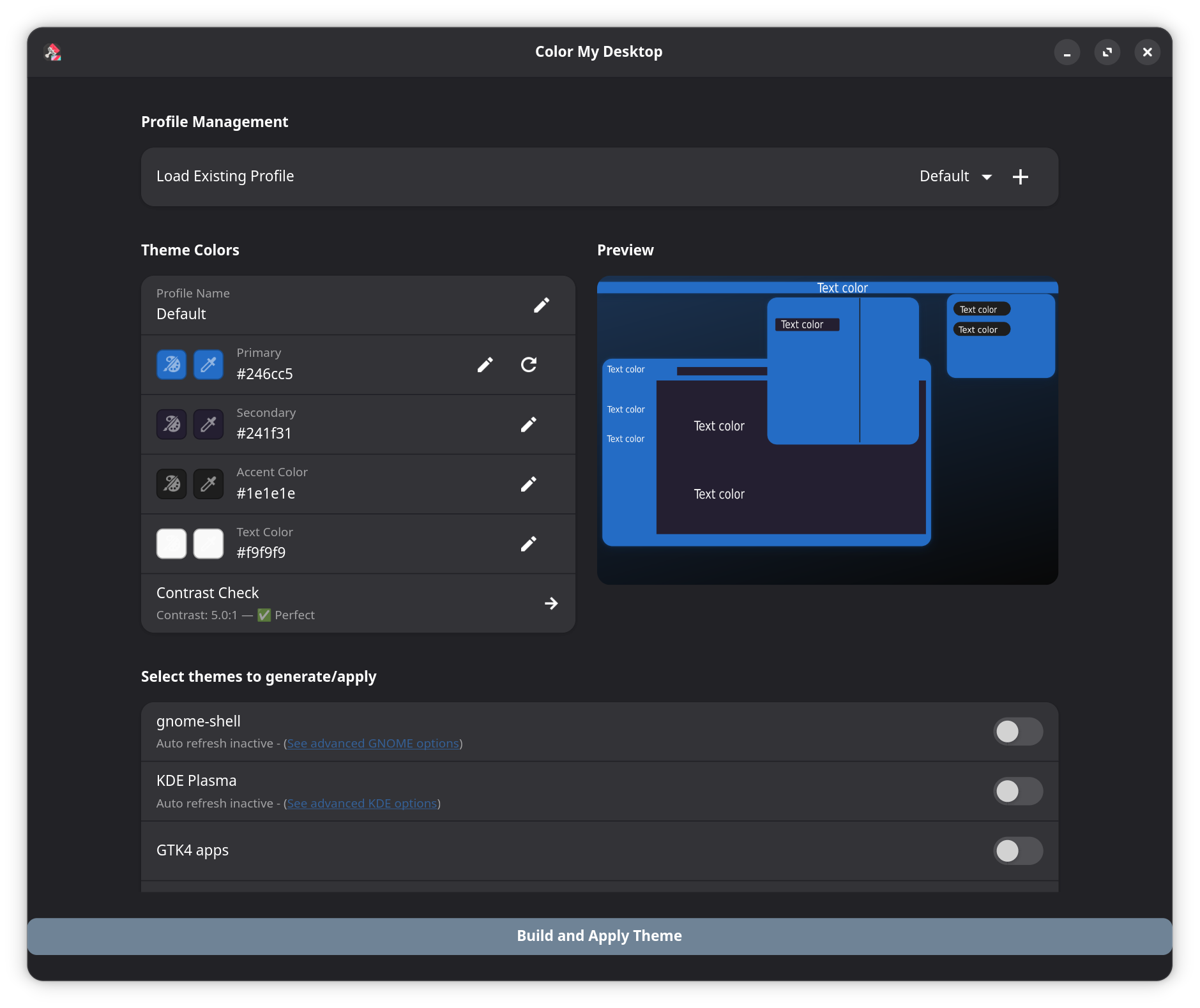
Then select which platforms/apps you want to generate themes for and press the build and apply button.
-
GNOME
-
KDE Plasma
-
Zen-browser themes
-
Zen-broswer requires an initial one time configuration to apply themes
-
these instructions are included in the application aswell.
First you will need to enable user themes for zen. In your browser enter
about:configinto the url bar and search fortoolkit.legacyUserProfileCustomizations.stylesheets
click the arrow to set the value to "true"Then In your browser enter
about:profilesinto your url bar, look for the profile currently in use and click the "Open Directory" button
open your "chrome" directory and copy the path to your "chrome" directory.Finally in the Color My Desktop app, open the zen-browser permission dialog and paste the path of your current profiles chrome directory into the box as prompted. You will now be able to correctly select this path in the app for exporting your custom zen themes.
-
Color My Desktop currently has these features:
-
Picking hex color values for
- Primary (main color used on top bar, window bar, and main window elements)
- Secondary (used for window backgrounds and some accents)
- Tertiary (used mostly for accents and some backgrounds)
- Text color.
-
Apply colors to / create themes for
-
GNOME
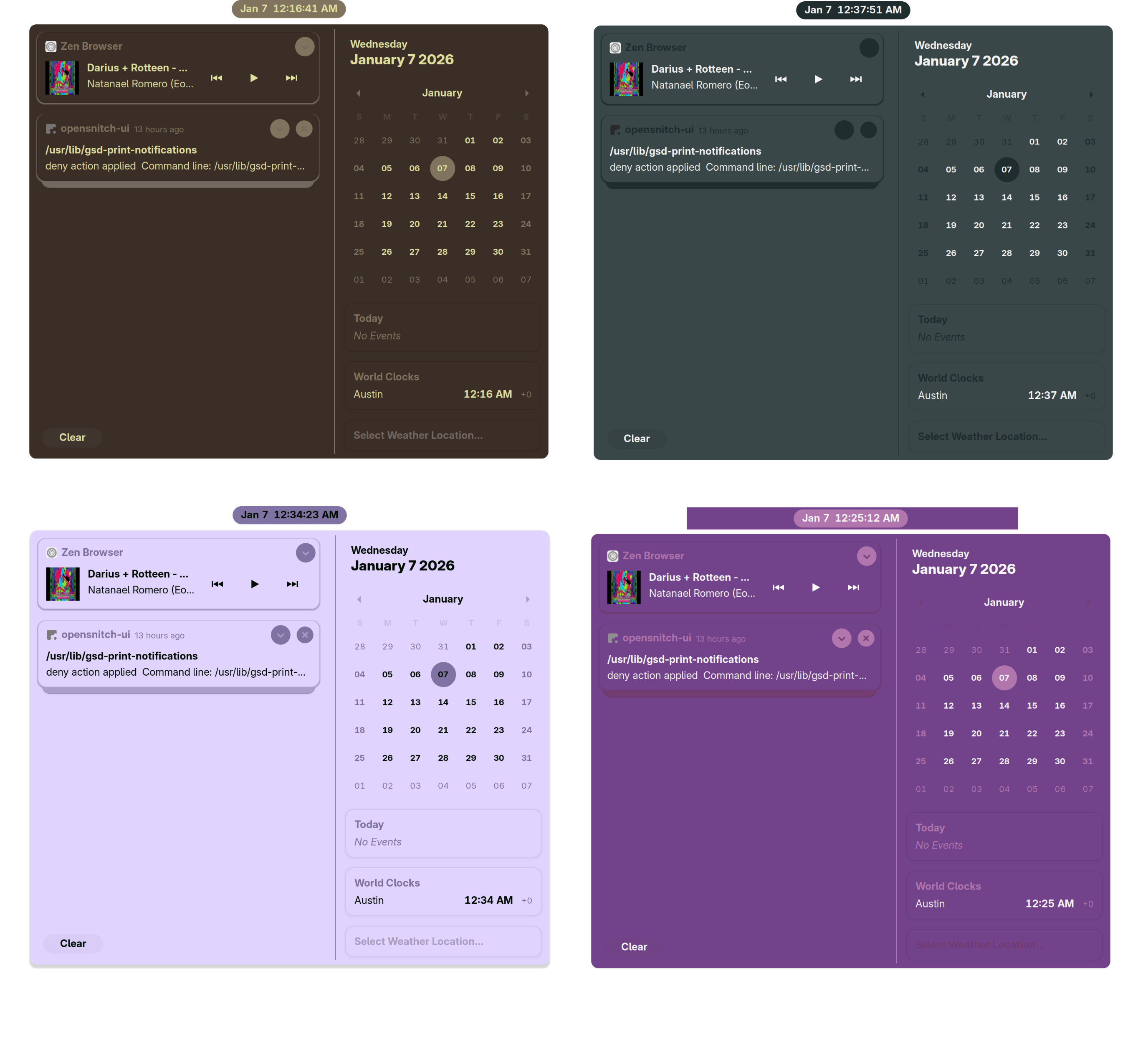
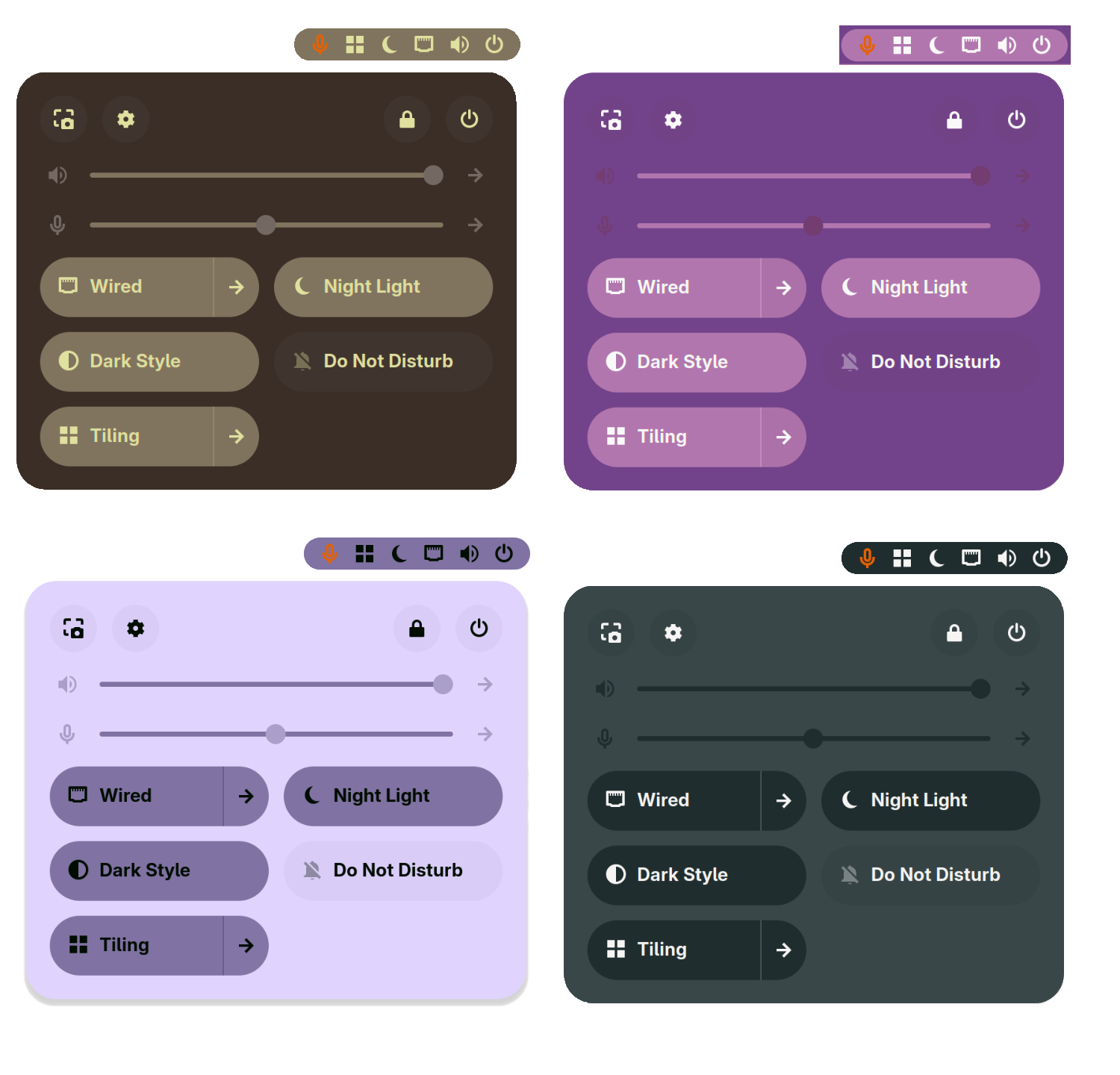
-
KDE-Plasma
-
Zen-browser
-
Zen-broswer requires an initial one time configuration to apply themes
-
these instructions are included in the application aswell.
First you will need to enable user themes for zen. In your browser enter
about:configinto the url bar and search fortoolkit.legacyUserProfileCustomizations.stylesheets
click the arrow to set the value to "true"Then In your browser enter
about:profilesinto your url bar, look for the profile currently in use and click the "Open Directory" button
open your "chrome" directory and copy the path to your "chrome" directory.Finally in the Color My Desktop app, open the zen-browser permission dialog and paste the path of your current profiles chrome directory into the box as prompted. You will now be able to correctly select this path in the app for exporting your custom zen themes.
-
-
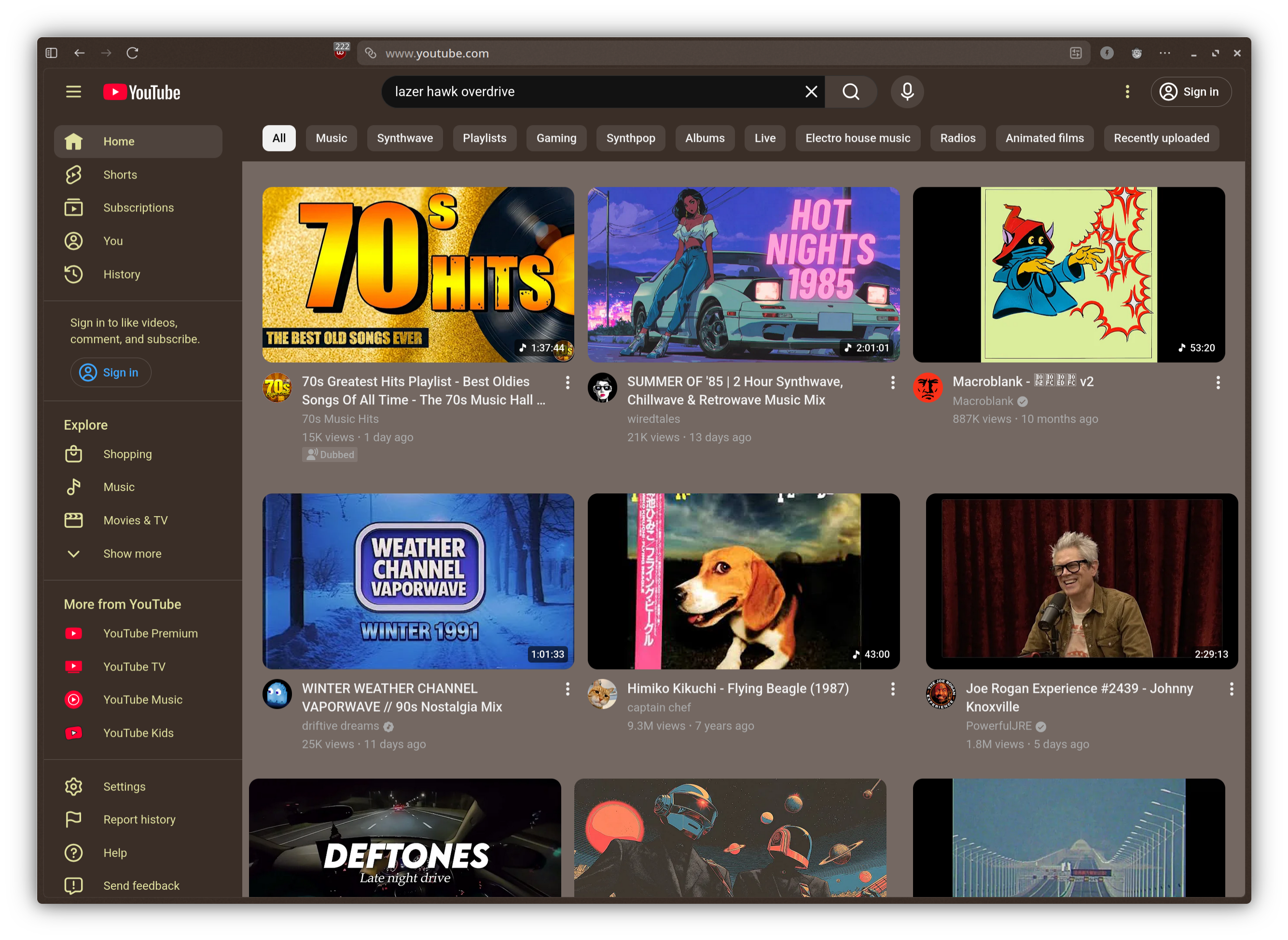
Youtube (Zen browser only)
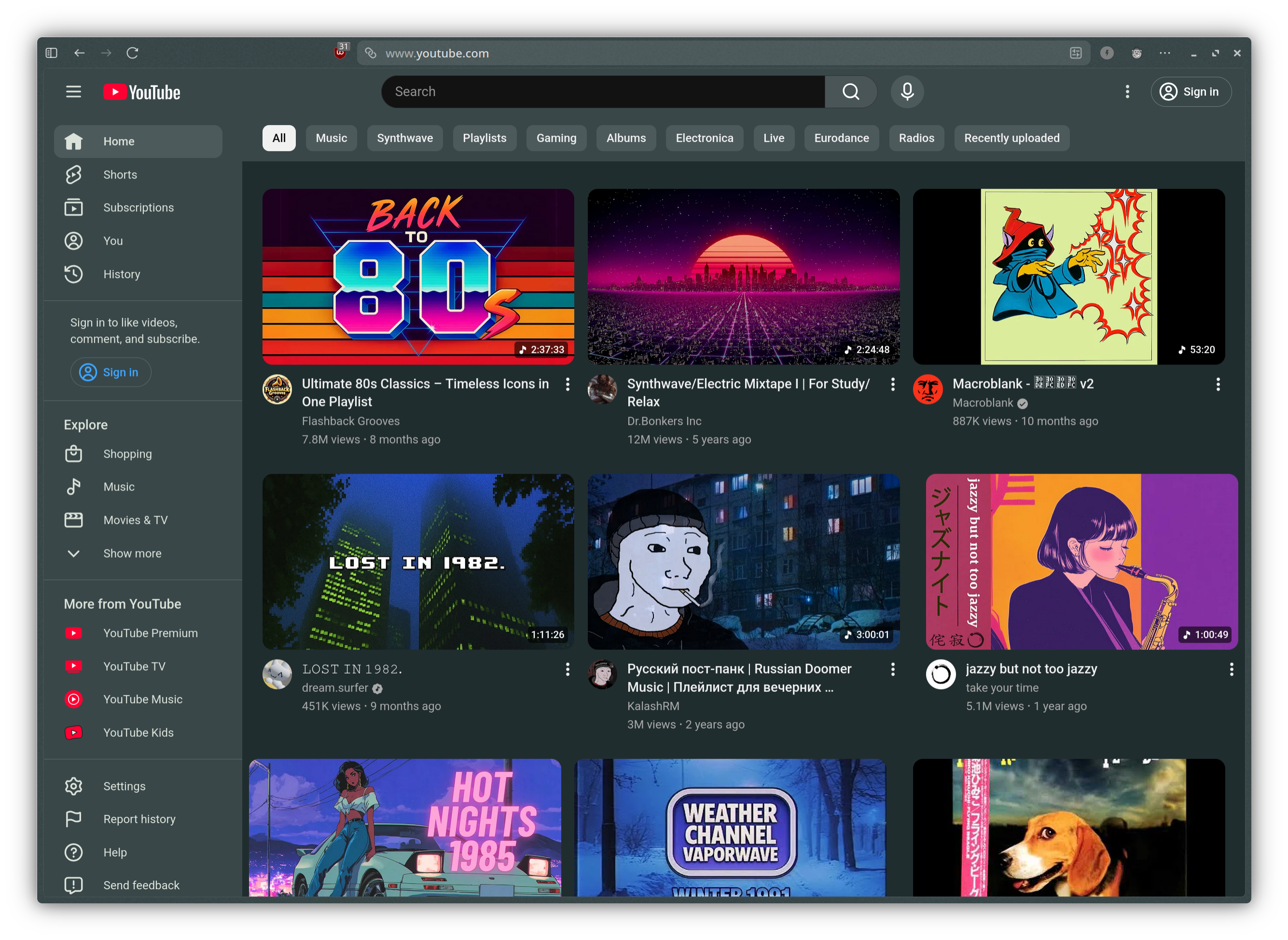
-
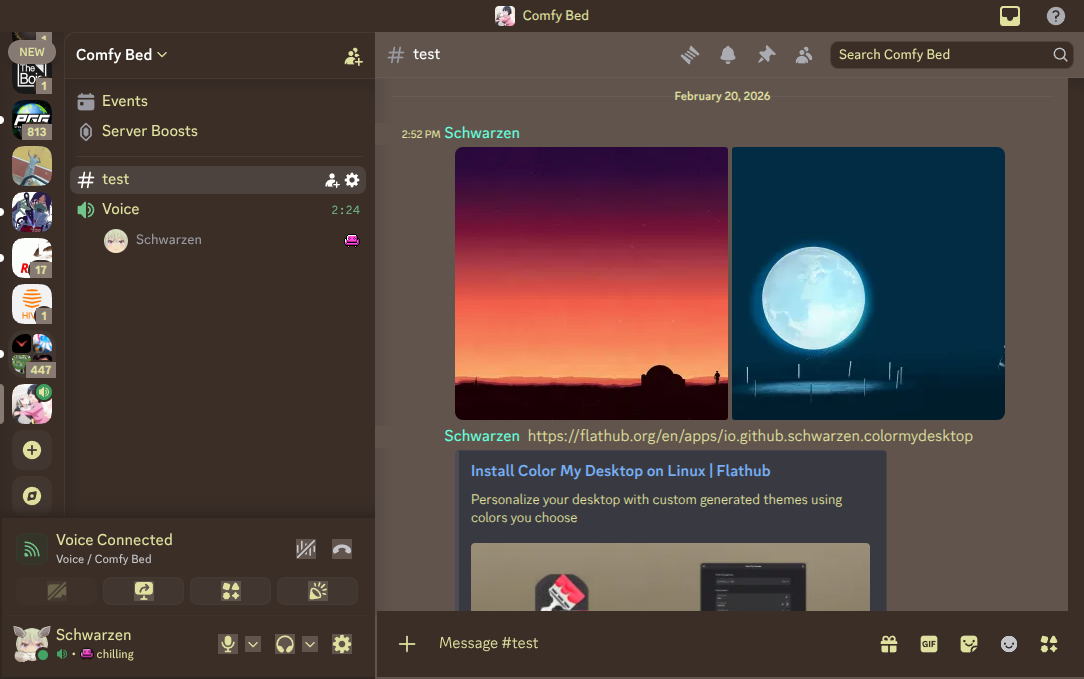
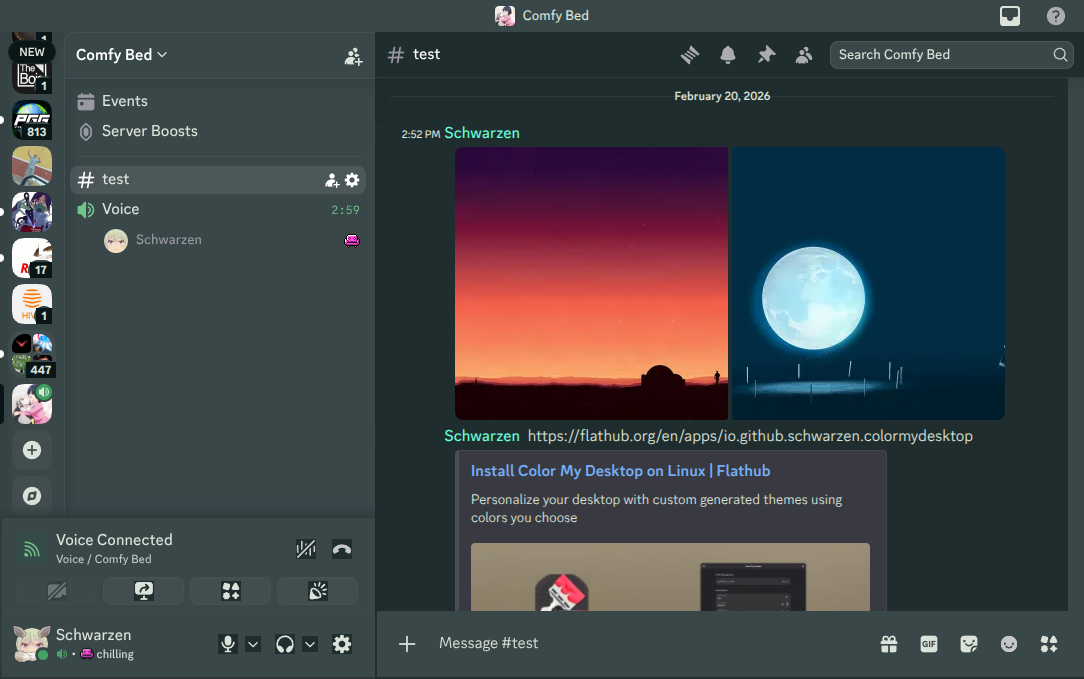
Vesktop
-
Papirus Icons
-
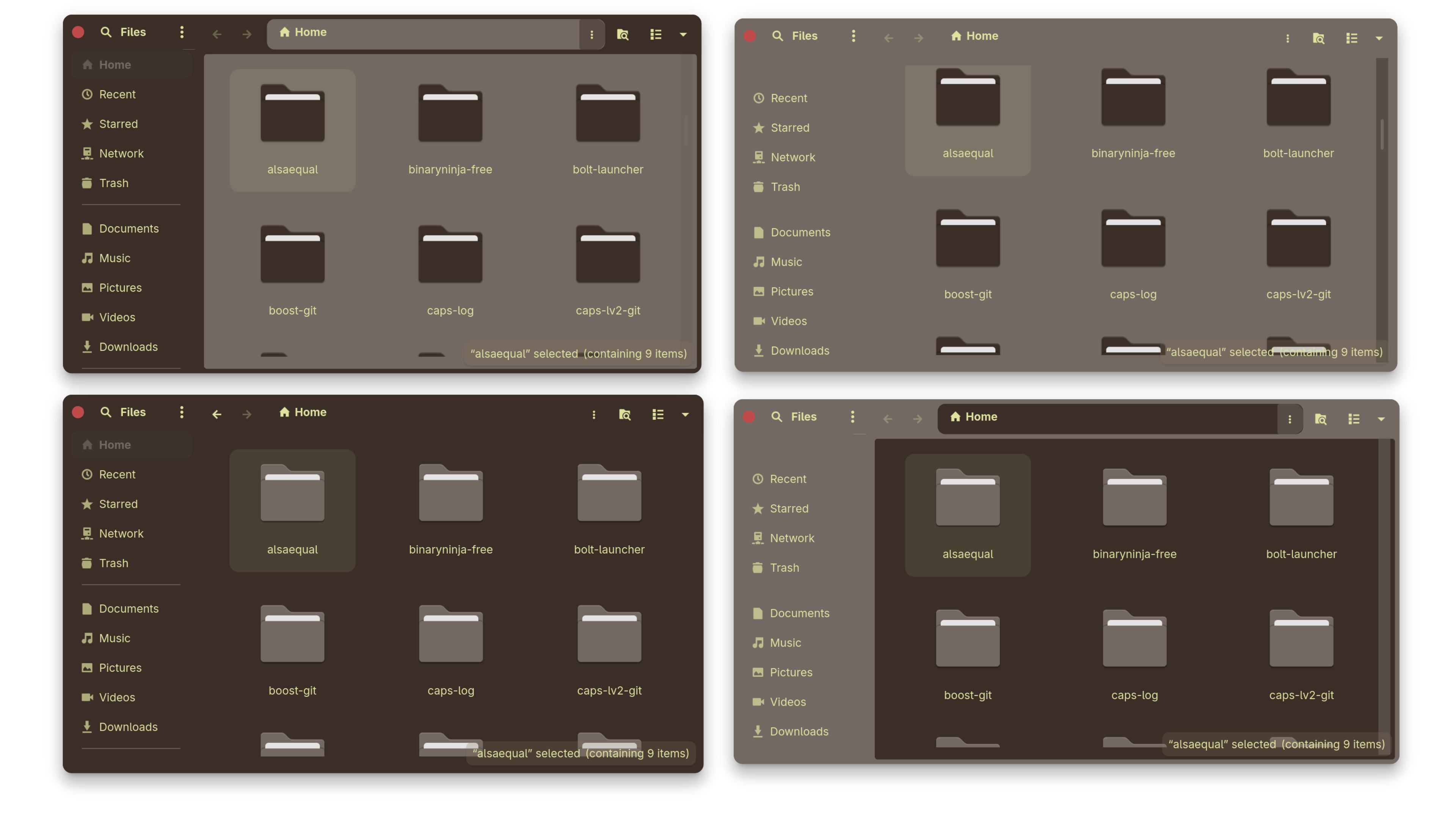
GTK4 Apps
-
-
GNOME
- For regular installs auto apply/refresh is enabled by default for GNOME shell themes (requires setup in flatpak installs), if not using auto apply/refresh, you will need to set the theme manually.
- To manually change themes, once the theme has finished compiling, open the gnome tweaks application and change your shell theme to "Color-My-Desktop"
Some apps may require logging out to refresh their colors.
-
KDE
- For regular installs auto apply/refresh is enabled by default for Plasma themes (requires setup in flatpak installs), if not using auto apply/refresh, you will need to set the theme manually.
- Once the theme has finished compiling, open the system settings, navigate to the "Colors & Themes" and change your "Colors" and "Plasma Style" to Color-My-Desktop.
-
Vesktop
- The path for Vesktops theme folder will be automatically determined regardless of its installation method (flatpak), simply go to "User Settings" > "Themes
and press the "load missing themes" button, then activate the Color-My-Desktop theme.
- The path for Vesktops theme folder will be automatically determined regardless of its installation method (flatpak), simply go to "User Settings" > "Themes
-
Zen-browser/youtube
- Please make sure you complete the Zen-browser/youtube initial setup, the Zen-browser themes will then autmatically refresh after the browser is closed and re-opened
Color My Desktop is still being tested, please backup any important files and use with caution. Color My Desktop only alters the files it comes with,
and only creates files in the Zen-browser theme folder that reference the css files created by Color My Desktop.
navigate to the directory where you cloned the files
make uninstall
make clean


