Configure Server Auditing for Azure SQL Managed Instance to capture someone enabling SQL CLR or Database Mail on the instance
Auditing is a very important part of security configuration on any Database service and it becomes more critical in a cloud environment. Azure SQL Managed Instance Server audit can be written to Azure Storage or Log analytics workspaces. In this setup we will be showcasing Log analytics workspace so that we can use the native functionality to easily alert and notify teams when any suspcious activities happen related to someone enabling CLR or Database Mail on the instance. Here is the direct link to the T-SQL script to enable auditing on a SQL Managed Instance
Enable Diagnostic Settings under the Monitoring category under Azure SQL Managed Instance properties. Make sure you select the SQLSecurityAuditEvents under logs. For the Destination details, please click Send to Log Analytics and select the right Log analytics workspace where you want to direct your Audit logs. Finally Click Save button


On the SQL MI instance, Log on with the Privileged Admin rights, Enable the SQL MI Instance for Server auditing and select the location as EXTERNAL_MONITOR to direct your logs to Log Analytics workspace instead of an Azure storage location which is the default. Once you run this code, the next step is to create to Server Audit specification
CREATE SERVER AUDIT Audit_sp_configure TO EXTERNAL_MONITOR;
GO
Create a server audit specification to capture all the sp_configure activity on the SQL instance and anything to do with the existing audit as well
CREATE SERVER AUDIT SPECIFICATION Audit_sp_configure_sp
FOR SERVER AUDIT Audit_sp_configure
ADD (SCHEMA_OBJECT_ACCESS_GROUP)
WITH (STATE = ON)
GO
Enable the server audit created in the earlier step. This is the final step and Auditing has been enabled for your Azure SQL Managed Instance. These logs will be pushed into Log analytics
ALTER SERVER AUDIT Audit_sp_configure WITH (STATE=ON);
GOAll the logs show up in the Log Analytics workspace. Click on the Logs option under General Category to open the Kusto Query explorer where in you can write your Kusto queries to explore your data and then create alerts accordingly
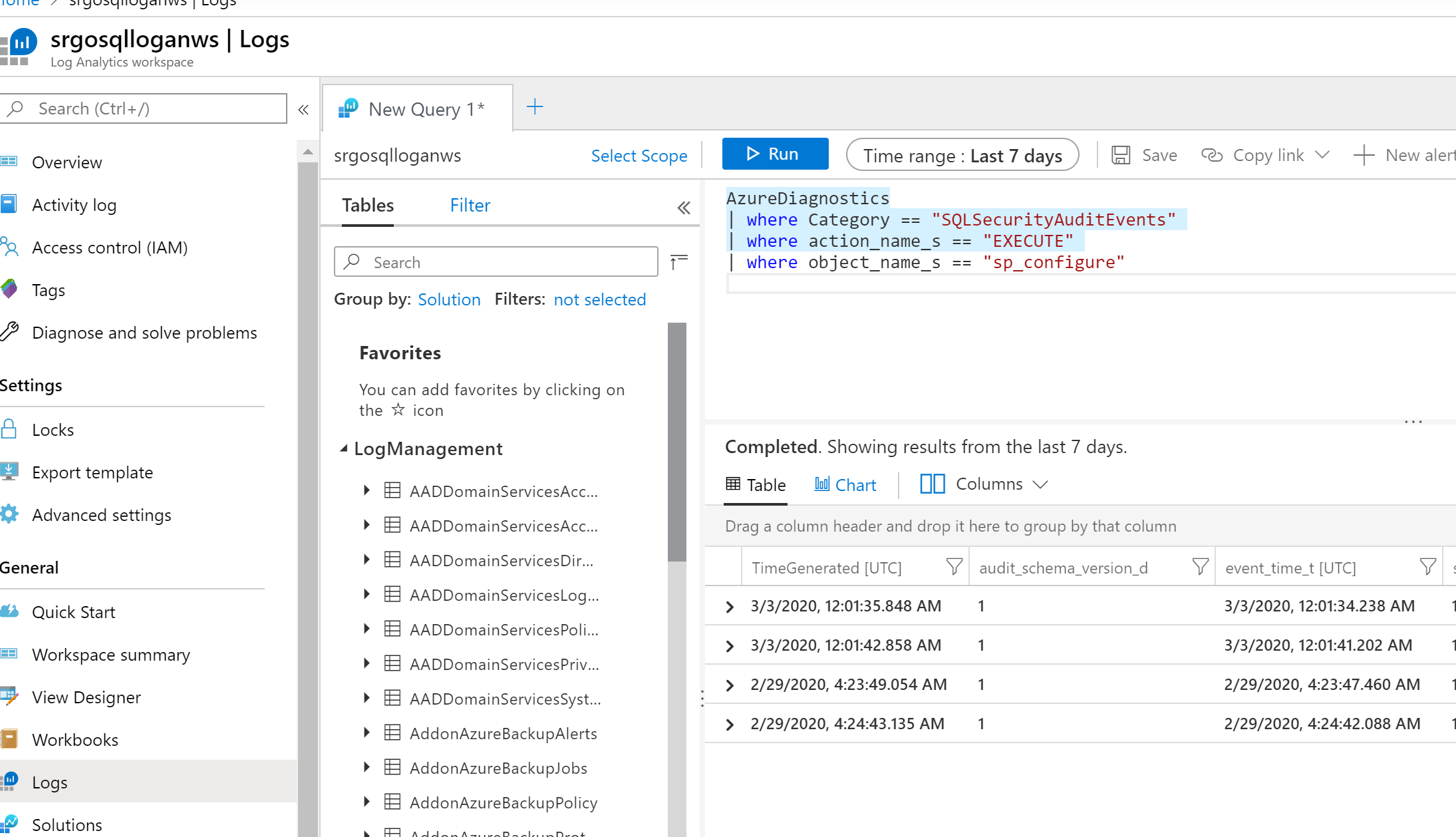
This query will show all the logs captured by SQL Auditing option which we have enabled on the Azure SQL Managed instance in the earlier steps
AzureDiagnostics | where Category == "SQLSecurityAuditEvents" Here are steps to create Alerts based on a Custom log query. You can customize this accordingly to your SLA requirements and create an Action group to notify when certain thresholds are hit Click the + New Alert button to create a new alert using this custom query Specify the condition which contains the above query and other values like Alert logic, Frequency and Period
AzureDiagnostics
| where Category == "SQLSecurityAuditEvents"
| where action_name_s == "EXECUTE"
| where object_name_s == "sp_configure" 
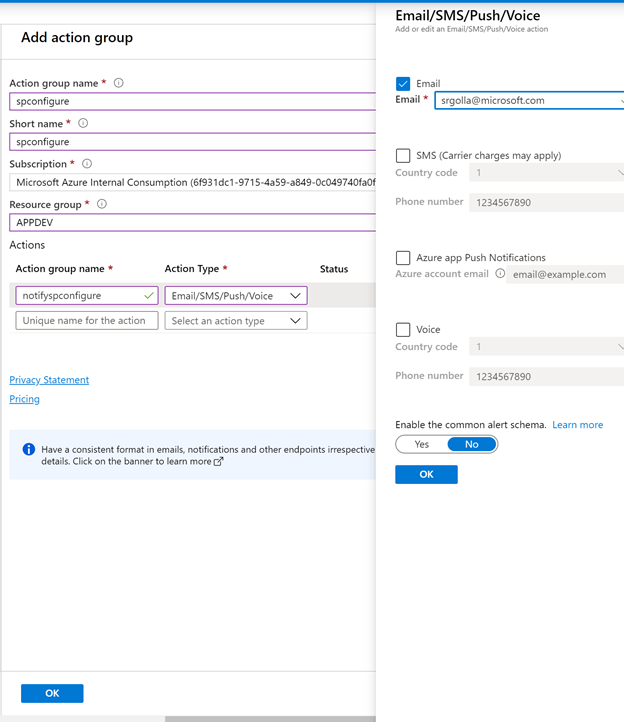
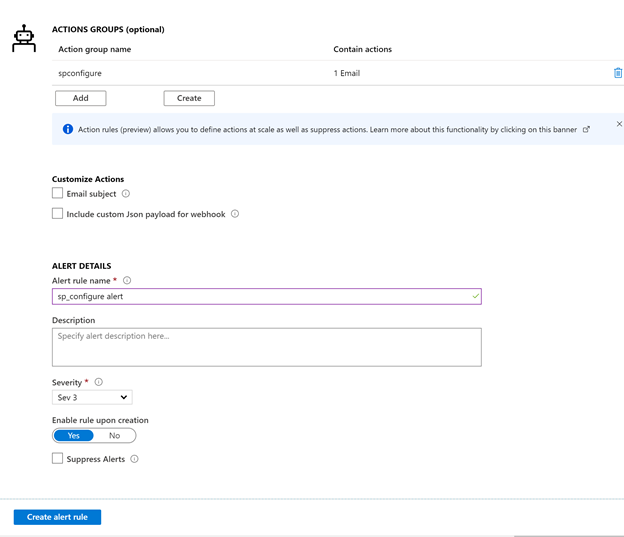
Create an action group to get notified on the alert. This could be an email, SMS, Webhook or Logic apps etc.
Run the following script to enable "clr enabled" or "Database Mail XPs" on the Azure SQL Managed instance
sp_configure 'clr enabled', 1
go
reconfigure
go
